Monday, July 10, 2017

I think I am addicted...

So it's no surprise that with three kids I have become slightly addicted to caffeine more specifically coffee; Dunkin' Donuts iced coffee the ones in the bottles you can buy at Target or the grocery store. But at $2.50 each it was becoming a very expensive habit.


So I have decided that I'm going to start making ice coffee at home. I mentioned this to Amanda, she told me about this fabulous kitchen gadget. So in the amazon cart it went and it arrived last week. I have made three batches of ice coffee. It is not as good as the Dunkin' Donuts Coffee but it is definitely cheaper.


Here is the recipe I used...3 cups of water in a mason jar. Fill the mesh strainer with 3/4 of a cup of ground coffee. Put the strainer inside mason jars screw on the lid and let it sit overnight. The next morning I added a half a cup of half-and-half and you can do either a third a cup of sugar or I did 3 tablespoons of agava nector. Mix it all together and pour over ice.


Now the first day I had about half of the mason jar. (Don't judge) It wasn't the same as the Dunkin but it was still good. I do have to say that the next day it was better, all the ingredients got to merry together. So I suggest making a couple batches ahead of time. Or use a bigger jar ;-). It keeps for a while when you keep it in the fridge.


Thursday, July 6, 2017

Obsessed!!! with Google Classroom

As many of my coworkers can tell you I became obsessed with Google Classroom this spring!! Not only did I become obsessed my students were also obsessed. They would come in each morning and rush to unpack so that they could login to the computer and see if they had a new assignment.  They loved telling me that they had finished everything and got so disappointed when I told them I wasn't adding anything new until the next day.

So for those of you who are ready to try an amazing tool that will not only engage your students but will also make it easy to differentiate then here you go...

How to Set Up Your Google Classroom

1. Go to classroom.google.com. When you log in be sure to use your education account. If your Google log-in is your school email address, you're probably ok.  If not check with your school technology department to see how you can access Google Classroom.  


2. Click on the "+" button in the top right hand corner of your screen to create a class. Then click "Create class". 


3. Add a class name. For example "Mrs. Wright's Kindergarten Class" or "Mrs. Curtis' Passionate Pineapples".  Get creative!! Then click "Create". 


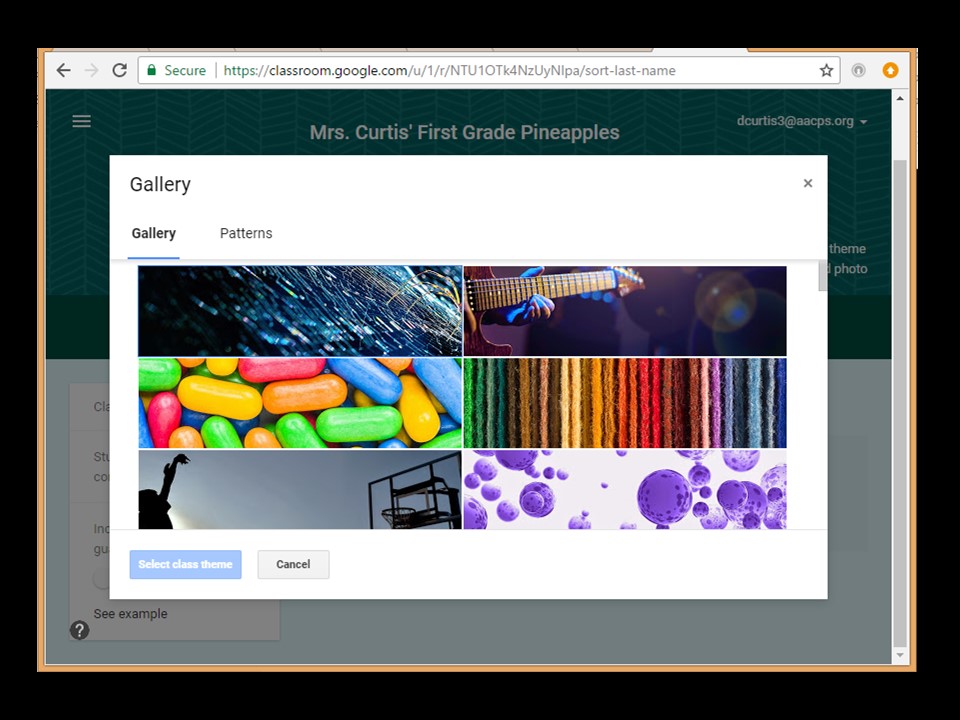
4. Once your class is created, students can start joining it. But I am betting your students aren't sitting right in front of you. So take this time to personalize your classroom. Click "Change class theme" on the right side of the header. It will open a gallery of header images you can use to spice up your classroom. (stay tuned and I will teach you how to create a header of your very own.) 


5. Once your students are in front of you and I suggest doing this in a computer lab or somewhere everyone can be logged into a computer it is time for them to join your class.  Have them log in to Classroom with their school Google account and click the "+" just like you did.  It will prompt them for a class code, which you can them them. Once they enter it, they're in! 

Adding Assignments in Google Classroom

So you have set up your google classroom and are now ready to start adding assignments.  Perfect!!


1. To add an assignment click on the "+" in the lower right hand corner of your classroom.  If you don't see it make sure you are looking at your stream not students or about.


2. From there you get many different option for assignment types.  If you are adding a "slides" document then click "assignment".  This is what I use with my kiddos 90% of the time.


3. From there you need to give your assignment a title. I recommend you number all of your Google Classroom assignments. Start EACH assignment with a number such as #001, #002, etc… This makes is really easy to refer students to the correct spot in Google Classroom. This is also helpful since you are unable to reorder assignments and announcements in the stream. You also can determine who will see this assignment (great for differentiation!!) Finally you need to attach your document that will become your assignment.  You can upload into classroom from your computer, Google Drive, YouTube, or you can even attach a link to an outside website. All of my assignments are stored on Google Drive. 


4. VERY IMPORTANT STEP!!!! Once your assignment is attached you can change how students will view and interact with the document/link.  If I am using "slides" I want each student to have their own copy of the document so that they can manipulate it and not change my original.  In order to do this you need to change the circled drop down box to say "Make a copy for each student".  Then hit assign. 


5. Your assignment will now appear in your stream.


I hope this helps get you started with Google Classroom.  If you have any questions please feel free to comment or send me an email. 

Wednesday, July 5, 2017

Moving to First Grade

It is hard to believe that I finished my 7th year teaching Kindergarten.  Believe me when I say I have learned a lot and have truly grown into the teacher/leader I want to be. If you know me you know that I am never content unless I have a challenge, hence me applying for my National Board Certificate after only 3 years of teaching, going back to school to get my admin certificate while having a baby and being pregnant, and now moving to FIRST GRADE with 3 little ones at home.

Being pregnant with TWINS and preparing to move to first grade wasn't something that I was looking forward too, but the planner that I am started to plan. Step one was cleaning out my cabinets and boxing everything up.  Good thing the neighbor has 3 girls who are always eager to help, so in exchange for me bringing them home they stayed with me after school a couple of days a week. We would take everything out of the cabinet and make piles one that stayed in the room and one that would go to first.  We would label the cabinets "staying" and "first grade" and load everything back into the cabinet.

Once we got closer to the end of school the teachers whose room I was moving into started to clean out her cabinets.  She was the third teacher in this room and had only been in their for one year.  She warned me that nothing was organized and things were just thrown into the cabinets. Most of the cabinets she had never opened.  So before I could move my stuff in I had to organize what was already there.  Again the girls helped me put manipulatives in plastic containers and move thing around so each content area had its own cabinet.  For the bigger stuff and to make things quicker Jamie went to school with me 2 nights and moved the shelves to accommodate my storage bins and move a lot of stuff at one time. He's good like that. :-)

All along my goal was to make it to the end of school year (these boys were going to be born in June)! So I also periodically stood in the middle of my classroom and would take pictures of the room.  Towards the end I would label the pictures with what needed to go to first grade and what was staying.  It turned out to be a 12 page document. The day before school let out I was told that I was dilated 5cm, they didn't send me to labor and delivery but I knew that I needed to move the furniture out of my room (just in case) so my dad went to school with me and moved all of the big stuff into my new room.  I didn't feel comfortable being at school on that last day so I took the day off. :-(  I sent that 12 page document to my co-workers, just in case.  Well those babies didn't come and I got tired of being at home on the couch so I went to work Friday.  In exchange for lunch Caitlin went with me to help me move the last of my stuff. We even had time to put paper on a couple of bulletin boards and move the furniture so I had an idea of the space I was looking at.  Everyone thought I was crazy and they came up with code words if I went into labor.

So it is official I am now a FIRST GRADE TEACHER!!

**sorry this post doesn't have any pictures. i forgot to take some before i left school.  i will update with pictures come august.**

Monday, July 3, 2017

teaching: Woolbur: Lesson on being Different

One of my favorite books to read in the spring is Woolbur by Leslie Helakoski In the story Woolbur is a sheep who is not afraid of being different.  This week we used this book to stress the importance of being different.  Our Morning Meeting are only about 10 minutes a day so we really had to break this lesson up.

Day 1: we read the story. On a side note one of our focus this year is text dependent questions (going along with common core), so with that we created a couple text dependent questions to go along with the story.  1. What is the main idea of the story?  2. How did Woolbur interact with the other characters in the story?  3. How do you think Woolbur's parents felt about him being different?

Day 2: we made a circle map that included all the different ways that Woolbur was different.

Day 3: we made another circle map on ways that we are different.  My kiddos came up with some interesting things that make us different.

Day 4: We did a 4 minute write. Each student had to write 1 or 2 sentences about what made them different.  Then they got into groups based on the shape on the top of their paper and shared what they wrote.  To grab your free copy of the writing paper check out my TpT store.

My kiddos loved this book and really understood that everyone is different and unique.